

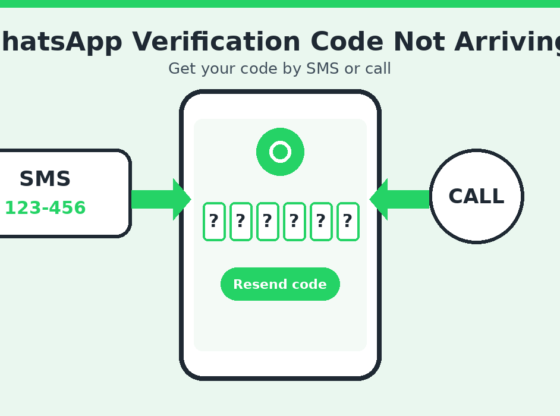

You install WhatsApp, enter your phone number, and then wait… and wait. The six-digit verification code never shows up, or the “Resend SMS” and “Call me” options stay greyed out behind a countdown. It is one of the most common WhatsApp setup problems, and it usually has a simple cause. This guide walks through the official ways to get your code, the most likely reasons it fails, and how to protect your account while you sort it out.
What You’ll Need
- The phone number you want to register, with the SIM card inserted and active
- A working mobile signal (the SMS needs it; a call needs it too)
- The latest version of WhatsApp from Google Play or the App Store
- A phone with enough free storage and a correct date and time setting
Step 1: Double-Check the Number and Country Code
Before changing anything, confirm that you typed the right number. Choose the correct country from the list, then enter the number without a leading zero unless your country’s format requires one. WhatsApp shows the number back to you for confirmation — read it carefully, because a single wrong digit sends the code to someone else or to nowhere at all.
Step 2: Wait Out the Timer, Then Request Again
WhatsApp limits how often you can request a code. After the first attempt, a countdown appears before you can ask for another SMS or a phone call. Waiting for the timer to finish is important: repeatedly requesting codes in a short time can trigger a longer cooldown. If you see a message saying you tried too many times, you will need to wait for the period shown before trying again.
Step 3: Choose the Phone Call Option
When the SMS option is not working, tap Call me once it becomes available. WhatsApp places an automated call and reads the code aloud. Keep your phone nearby, make sure your phone is not on Do Not Disturb, and write the code down as it is spoken. This works even when your carrier blocks short-code SMS messages.
Step 4: Fix Phone and Network Settings
- Check your signal. Move to an area with better coverage, or toggle airplane mode on and off for ten seconds to re-register on the network.
- Restart the phone. A restart clears many temporary SMS delivery glitches.
- Check blocked senders. Open your messages app and look at the spam, blocked, or filtered folders. Some messaging apps and carrier filters hide automated messages.
- Free up SMS storage. If your SIM or messages app is full, new messages may not arrive. Delete old threads.
- Turn off call blocking and spam filters temporarily. Built-in call-screening features can stop the automated verification call.
- Try Wi-Fi calling off. On some carriers, SMS delivery behaves better on the mobile network than over Wi-Fi calling.
Step 5: Check the SIM and Carrier
The SIM that holds the number must be active and able to receive messages. If you recently changed carriers, ported your number, or replaced your SIM, the network may need a short time to finish the change. Contact your carrier if you suspect that the number cannot receive SMS or calls, or if it is a prepaid plan that has expired. Note that some virtual or internet-only numbers may not be able to receive WhatsApp verification messages reliably.
Step 6: Update the App and Clear Its Cache (Android)
An outdated version can cause registration errors. Update WhatsApp from your app store. On Android you can also go to Settings > Apps > WhatsApp > Storage and clear the cache (not the data, unless you have nothing to lose). Then reopen the app and start registration again. On iPhone, if the problem persists, deleting and reinstalling the app is the equivalent step — but make sure your chats are backed up first if you were already using WhatsApp on that device.
Data Safety and Account Precautions
Your verification code is the key to your WhatsApp account, so treat it carefully.
- Never share your six-digit code with anyone, including people claiming to be friends, WhatsApp staff, or delivery companies. WhatsApp does not ask you for it.
- Beware of unexpected codes. If you receive a code you did not request, someone may be trying to register your number. Do not share it, and consider turning on two-step verification.
- Enable two-step verification after you register. Go to Settings > Account > Two-step verification and set a PIN you will remember. Add an email address so you can reset the PIN if you forget it.
- Back up your chats before moving to a new phone or SIM so a registration problem does not cost you your history.
- Avoid unofficial apps that claim to deliver codes. Use only the official WhatsApp app.
Common Problems and Fixes
“Resend SMS” is greyed out. This is the normal waiting period. Wait for the timer, then try again. Closing and reopening the app does not usually shorten it.
“You have guessed too many times.” This appears after several wrong code entries. Wait for the time displayed before trying again, and enter the code carefully.
The code arrives but is rejected. Make sure you are using the most recent code, because older ones expire when a new one is sent. Check that you typed it without spaces.
“Can’t connect to WhatsApp.” Check your internet connection, disable any VPN, and confirm your phone’s date and time are set to automatic.
The number is already in use on another phone. Registering on a new phone will log you out of the old one. This is expected and is how WhatsApp moves your account.
Nothing works after several tries. Wait a day, then try again on a stable network. If it still fails, use Help > Contact support inside the registration screen or visit the official WhatsApp Help Center.
FAQ
How long does the WhatsApp SMS code take?
It normally arrives within a minute or so. If it has not arrived after a couple of minutes, wait for the resend timer and try the call option.
Can I verify WhatsApp without a SIM card?
You need a phone number that can receive an SMS or a call. A SIM in another phone can receive the code, as long as you enter the code in the phone you are setting up.
Why did I get a WhatsApp code I never asked for?
Someone may have typed your number by mistake, or tried to register it. Ignore the message, never share the code, and turn on two-step verification.
Will I lose my chats if I re-register?
Not if you re-register on the same number and restore from a backup you made earlier. Without a backup, history that is not stored elsewhere cannot be recovered.
Steps and menu labels may change as apps update. Last updated: October 2026.