

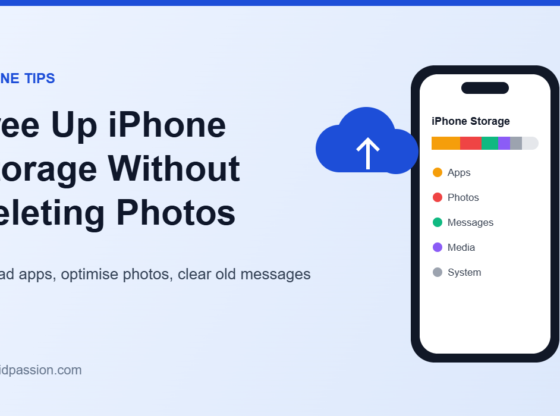

The “iPhone Storage Full” warning has a habit of appearing at the worst moment: halfway through recording a video, or just as an important app update needs space. The instinct is to start deleting photos, but on most iPhones photos aren’t the only thing filling the space, and you can usually free several gigabytes without losing a single picture. This guide shows you how to see what’s really using your storage, and how to clear it safely.
What You’ll Need
- Your iPhone, unlocked, with a few minutes to work through the settings below
- Your Apple Account password, if you plan to turn on iCloud Photos
- A recent backup (iCloud or computer) before you remove anything you can’t easily get back
- Optional: enough iCloud storage if you want to keep full-quality photos in the cloud
Step 1: Check What’s Actually Using Your Storage
Before you delete anything, find out where the space has gone. Open Settings, tap General, then tap iPhone Storage. Give it a few seconds to calculate.
At the top you’ll see a coloured bar split by category, such as Apps, Photos, Media, Messages and System. Below that, iOS shows its own recommendations, and then a list of every app sorted by how much space it uses. That list is the most useful thing on the screen: it’s often a single messaging app, a streaming app with downloads, or a game that’s quietly taking up more space than your entire camera roll.
Step 2: Use Apple’s Built-In Recommendations
The recommendations at the top of iPhone Storage are tailored to your phone. Tap Show All to see the full list, then either tap Enable to turn one on or tap the recommendation to review what it would remove.
The one most people benefit from is Offload Unused Apps. When it’s on, iOS removes apps you haven’t used for a while but keeps their documents and data. The app’s icon stays on your Home Screen with a small cloud symbol, and tapping it reinstalls the app from the App Store with your data still in place (as long as the app is still available).
Step 3: Offload or Delete Individual Apps
In the app list on the iPhone Storage screen, tap any app to see its details. You’ll get two options:
- Offload App removes the app itself but keeps its documents and data, so you can reinstall it later and carry on where you left off.
- Delete App removes the app and its data from the phone. Only use this for apps you’re sure you don’t need, or whose data is saved in the cloud.
Step 4: Keep Your Photos, but Store Them in iCloud
If Photos is the biggest category, you don’t have to delete pictures to reclaim space. Turning on iCloud Photos with optimised storage keeps your full-resolution photos and videos in iCloud and leaves smaller, space-saving versions on the phone. The full versions download when you need them.
- Open Settings and tap your name at the top.
- Tap iCloud, then tap Photos.
- Turn on syncing for this iPhone.
- Make sure Optimize iPhone Storage is selected rather than Download and Keep Originals. On newer iOS versions this option may sit one level deeper, under an iPhone Storage option on the same screen.
There’s a catch: this only works if your iCloud storage has room for your whole library. The free iCloud allowance is small, so many people with large photo libraries need a paid iCloud+ plan. Check how much iCloud space you have before you rely on this.
Also check the Recently Deleted album in the Photos app (under Utilities or Other). Photos you delete sit there for around 30 days before they’re removed for good, so they keep using space until you empty it.
Step 5: Clear Out Old Messages and Attachments
Years of photos, videos and voice notes in Messages can add up to many gigabytes. In Settings > General > iPhone Storage, tap Messages. Depending on your iOS version, you’ll see options to review large attachments, photos and videos sent in conversations, which you can delete individually.
You can also stop Messages keeping everything forever. In the Messages settings (under Settings > Apps > Messages on recent iOS versions), find Keep Messages and choose a shorter period, such as 1 Year. Be careful: this deletes older messages and their attachments, so save anything you want to keep first.
Step 6: Remove Downloads and Offline Content
Streaming apps are some of the biggest hidden storage users. Check for:
- Downloaded episodes and films in apps like Netflix, Prime Video or Apple TV
- Offline playlists in Spotify or Apple Music
- Downloaded podcast episodes that you’ve already listened to
- Offline maps you no longer need
- Files in the Files app under On My iPhone, including old Safari downloads
Most of these can be removed from inside the app and downloaded again later, so deleting them is low risk.
Common Problems and Fixes
“System Data” or “Other” is huge
This category holds things like caches, logs, Siri voices and system databases. You can’t delete it directly, and its size goes up and down as iOS manages it. A simple restart often brings it down. Clearing website data in Safari’s settings and removing large in-app caches can help too. If it stays extremely large for weeks, updating iOS is worth trying.
The storage figure doesn’t change after deleting things
iOS can take a while to recalculate. Wait a few minutes, close and reopen the iPhone Storage screen, and restart the phone if it still looks wrong. Remember to empty Recently Deleted in Photos too.
Optimize iPhone Storage isn’t freeing space
Optimisation happens gradually and only when the phone actually needs space. It also stops working if your iCloud storage is full, because photos can’t finish uploading. Check iCloud storage first.
Keep Your Data Safe While You Clean Up
- Back up first. Make sure an iCloud or computer backup has completed recently before you delete apps, chats or files.
- Don’t trust “cleaner” apps that promise miracle results. iOS doesn’t let third-party apps clear other apps’ data or system files, and some of these apps push expensive subscriptions or ask for access to your photos. The built-in tools above are safer.
- Be careful with Keep Messages. Shortening the period permanently deletes older conversations and attachments that aren’t backed up elsewhere.
- Check what’s in iCloud before deleting from the phone. If iCloud Photos is on, deleting a photo on your iPhone deletes it from iCloud and your other devices too.
FAQ
Will offloading an app delete my data?
No. Offloading removes the app but keeps its documents and data on your iPhone. When you reinstall it, your data comes back, as long as the app is still available in the App Store.
Does turning on iCloud Photos delete photos from my iPhone?
No. With Optimize iPhone Storage on, the full-resolution versions are kept in iCloud and smaller versions stay on your phone. You can still see every photo, and the full version downloads when you open or share it.
Is it safe to delete System Data?
You can’t remove it directly, and you shouldn’t try to with third-party tools. Restarting, clearing Safari data and updating iOS are the safe ways to bring it down.
For more help, see Apple’s official guides on checking the storage on your iPhone and managing your photo and video storage. If space is tight because of chats, our guide to using WhatsApp on multiple devices and our fix for iMessage not working on iPhone may also help.
Steps and menu labels may change as apps update. Last updated: November 2026.