

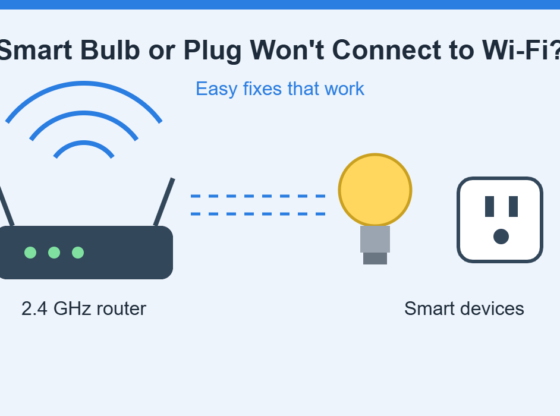

You unbox a new smart bulb or smart plug, open the app, and… it just won’t connect. The setup spins, times out, or reports a Wi-Fi error. This is one of the most common smart home problems, and it is usually caused by a handful of fixable network settings rather than a faulty device. This guide walks through the checks that solve most pairing failures, for both Android and iPhone.
What You’ll Need
- The smart device, powered on and within a few metres of your router
- Your phone with the manufacturer’s app installed and updated
- Your Wi-Fi network name (SSID) and password
- Bluetooth and Location (Android) or Local Network access (iPhone) enabled for the app, if the app requests them
Step 1: Check That Your Wi-Fi Band Is Compatible
Many budget smart bulbs, plugs and cameras only support the 2.4 GHz Wi-Fi band. If your router combines 2.4 GHz and 5 GHz under one network name, your phone may connect to 5 GHz during setup and the device can’t complete pairing. Check your device’s box or manual for supported bands. If it is 2.4 GHz only, temporarily connect your phone to the 2.4 GHz network (or turn off 5 GHz in your router settings during setup, then turn it back on afterward).
Step 2: Put the Device Into Pairing Mode
Most devices must be in pairing mode before the app can find them. The exact method varies by brand, but common patterns include:
- Smart plugs: press and hold the power button for several seconds until the indicator light blinks
- Smart bulbs: switch the bulb on and off a set number of times as described in the manual, until it flashes or pulses
Always follow your manufacturer’s instructions, since the blink pattern and timing differ between products.
Step 3: Restart Your Phone, Router and Device
- Turn the smart device off at the wall for about 10 seconds, then power it back on.
- Restart your phone.
- Restart your router by unplugging it for around 30 seconds and plugging it back in.
Wait a few minutes for the network to come back fully before trying setup again.
Step 4: Grant the App the Permissions It Needs
Setup apps often scan for nearby devices, which requires certain permissions. On Android, open Settings > Apps, select the app, and review its permissions (typically Location or Nearby devices, plus Bluetooth). On iPhone, open Settings, scroll to the app, and check that Local Network and Bluetooth are enabled if listed. Wording varies by version and manufacturer.
Step 5: Check Your Router Settings
Some router features can block new devices:
- MAC address filtering or an allow-list may prevent new devices from joining.
- Guest network or AP isolation can stop your phone and the device from seeing each other.
- Special characters in the Wi-Fi password can occasionally cause trouble with some devices. If you suspect this, test with a simpler temporary password.
- VPN or private DNS on your phone can interfere with setup, so turn them off temporarily.
Step 6: Reset the Device and Try Again
If the device was previously paired to another account or network, it may need a factory reset. Check the manual for the reset procedure for your model, then repeat the pairing process from the beginning. Make sure you remove any old entry for the device from the app first.
Common Problems and Fixes
- The app can’t find the device: move closer to the device, confirm it is in pairing mode, and ensure Bluetooth and the required permissions are on.
- Setup fails at the last step: the device may be struggling with signal strength or the wrong band. Move the router or device closer and retry on 2.4 GHz.
- The device connects, then goes offline: weak signal is the usual cause. Try a Wi-Fi extender or relocating the router, and consider giving the device a fixed IP reservation in your router.
- Works on one phone but not another: update the app and the phone’s operating system, then sign in again.
- Nothing works: contact the manufacturer’s support. The unit may be defective or need a firmware update.
Data Safety and Security Precautions
Smart devices connect to your home network and often to a cloud account, so treat them with care. Buy from reputable brands, use a strong, unique password for the device’s app account, and enable two-factor authentication if offered. Keep device firmware and the app updated, since updates often include security fixes. If your router supports it, consider placing smart devices on a separate guest or IoT network. Never share your Wi-Fi password or account credentials with unknown apps or support contacts you did not initiate. Before resetting or removing a device, note any custom schedules or scenes you want to recreate.
FAQ
Why does my smart plug only work on 2.4 GHz?
Many low-cost smart home chips only support 2.4 GHz, which offers longer range and better wall penetration than 5 GHz. Check your product specifications.
Do I need to disable 5 GHz permanently?
No. You can usually turn it off during setup only, or connect your phone to the 2.4 GHz network temporarily. Your device generally stays on the network it joined afterward.
Why does the app ask for Location permission?
On Android, scanning for nearby Wi-Fi or Bluetooth devices has historically required Location access. It is a system requirement for scanning, and you can review what the app does in its privacy policy.
Will a factory reset delete my data?
It removes the device’s saved Wi-Fi and pairing settings. Your data in the manufacturer’s cloud account generally stays unless you remove the device from the account.
Steps and menu labels may change as apps update. Last updated: November 2026.