

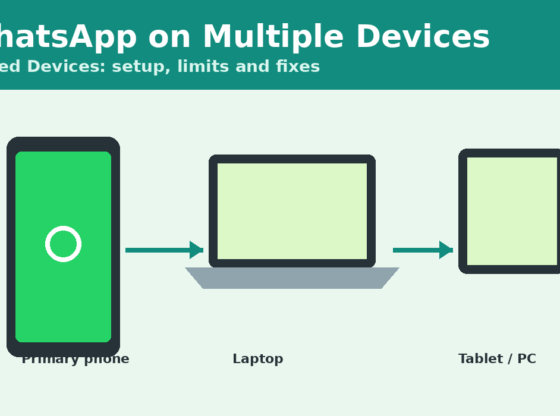

Many people want to read and reply to WhatsApp messages from a laptop, a tablet or a second phone without constantly picking up their main phone. WhatsApp’s Linked Devices feature makes that possible, but setup can be confusing and linking sometimes fails. This guide explains how to link extra devices, what to expect from the feature, and how to fix the most common problems.
What You’ll Need
- WhatsApp installed and registered on your primary phone, updated to the latest version from Google Play or the App Store.
- A working internet connection on the primary phone and on the device you want to link.
- The second device: a computer with a browser (web.whatsapp.com) or the WhatsApp desktop app, a tablet, or another phone with WhatsApp installed.
- A few minutes and a screen you can scan a QR code from.
How Linked Devices Works
Your primary phone stays your main WhatsApp account. Linked devices are additional sessions attached to that account. Messages on linked devices are end-to-end encrypted, just like on your phone. WhatsApp states that you can link a limited number of additional devices at once, and that linked devices may be logged out if your primary phone stays inactive for an extended period, so open WhatsApp on your phone regularly. Check WhatsApp’s Help Center for the current limits, as they can change.
Step 1: Link a Computer or Tablet with a QR Code
- On the computer, open web.whatsapp.com in a browser, or launch the WhatsApp desktop app. A QR code appears.
- On your Android phone, open WhatsApp, tap the three-dot menu, and choose Linked devices. On iPhone, open the Settings tab and choose Linked devices.
- Tap Link a device and unlock your phone if asked.
- Point the phone camera at the QR code on the computer screen.
- Wait while your chats sync. Recent chats load first, and older history may take longer.
Step 2: Link Using a Phone Number Instead of a QR Code
If scanning is not possible (for example, the camera is broken or you are on the same device), WhatsApp offers an option on the link screen to link with phone number instead. You enter your number on the new device, and WhatsApp shows a code that you type into your primary phone when prompted. Follow the on-screen prompts, since the exact wording can vary by platform and version.
Step 3: Link a Second Phone
On the second phone, install WhatsApp and begin setup. WhatsApp offers an option to link it to an existing account (look for a menu or link such as Link to existing account on the welcome or registration screen). Then use your primary phone to confirm the link, scanning the QR code or entering the code displayed. If you do not see this option, update WhatsApp on both phones and try again.
Step 4: Manage and Remove Linked Devices
Return to Linked devices on your primary phone at any time. You will see the devices connected to your account and when they were last active. Tap a device and choose Log out to remove it. Do this immediately for any device you do not recognize or no longer use.
Data Safety and Privacy Precautions
Because a linked device can display your private conversations, treat it like your phone itself.
- Only link devices you trust. Avoid public or shared computers; if you must use one, log out when finished.
- Review the Linked devices list regularly. An unfamiliar entry could mean someone else has scanned your QR code.
- Turn on two-step verification in WhatsApp’s account settings for extra protection of your number.
- Never share your QR code or six-digit codes with anyone, even if they claim to be support.
- Lock your devices with a passcode or biometrics, and keep your chat backups protected.
Common Problems and Fixes
The QR code will not scan. Increase screen brightness, clean the camera lens, and hold the phone steady about 15–30 cm from the screen. Refresh the QR code on the computer if it has expired, and grant WhatsApp camera permission in your phone’s settings. If it still fails, use the phone-number linking option.
“Can’t link device” or linking gets stuck. Update WhatsApp on both devices, check the internet connection on each, and restart the apps. Make sure your phone’s date and time are set automatically, because incorrect time can interfere with secure connections. If you have reached the device limit, log out one linked device first.
Linked device keeps logging out. Open WhatsApp on your primary phone regularly, and make sure battery-saving settings are not preventing WhatsApp from running. Using an outdated app version or clearing browser data on the computer can also sign you out.
Messages are missing or delayed on the linked device. Allow time for the initial sync, keep the phone connected to the internet during setup, and check that the linked device is online. If history is incomplete, log out of that device and link it again.
Frequently Asked Questions
Does my phone need to stay online? Linked devices can work independently for a while, but WhatsApp may log them out if your primary phone is not used for an extended period. Opening WhatsApp on the phone from time to time avoids this.
Are my chats still encrypted on linked devices? Yes. WhatsApp says personal messages on linked devices remain end-to-end encrypted. Your devices’ own security is still your responsibility.
Can I use the same WhatsApp account on two phones? WhatsApp has been rolling out support for linking a second phone to the same account. Availability can depend on your app version, so update and look for the link option during setup.
Will linking a device delete my chats? No. Linking adds a session and does not remove chats from your primary phone. Still, keeping an up-to-date chat backup is good practice.
Steps and menu labels may change as apps update. Last updated: November 2026.