

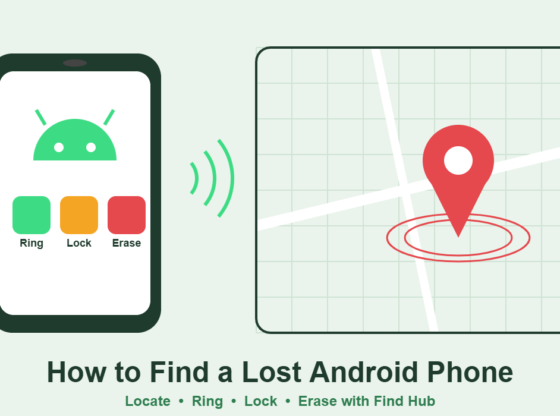

Few things are as stressful as reaching for your phone and finding an empty pocket. The good news is that Google builds a free tracking and remote-control service into almost every Android phone. This guide explains how to locate a lost Android device, make it ring, lock it, show a contact message, and — as a last resort — erase it remotely. It also covers how to set things up before you need them, plus what to do if location tracking isn’t working.
What You’ll Need
- The Google account signed in on the missing phone (email and password).
- Another device with a web browser — a computer, tablet, or a friend’s phone.
- For live location, the lost phone generally needs to be switched on, signed in, and connected to Wi-Fi or mobile data, with Location turned on. Some newer phones can also be found while offline through Google’s crowd-sourced network.
- Optional: your phone’s IMEI number (useful for your carrier and a police report).
Step 1: Make Sure Tracking Is Turned On (Do This Now)
Google’s service, now called Find Hub (previously “Find My Device”), is usually enabled automatically when you add a Google account. It’s worth checking while your phone is still in your hand:
- Open Settings and tap Google (on some phones, look under Security or Security & privacy).
- Find the Find Hub or Find My Device option and make sure it is switched on.
- Confirm Location is enabled in Settings.
- If offered, review the option to let your device be found when offline, and choose the level you’re comfortable with.
Menu names vary between brands and Android versions, so if you can’t spot it, search “Find” in the Settings search bar.
Step 2: Locate Your Phone From Any Browser
- On another device, go to google.com/android/find. You can also use the Find Hub app on another Android phone or tablet.
- Sign in with the Google account used on the lost phone. If you’re on a friend’s device, use a private/incognito window and sign out afterward.
- If you have more than one device, select the missing phone from the list.
- The map shows the phone’s current or last known location, along with battery level and network details when available.
Location is an estimate. In dense buildings or areas with weak GPS, it may be off by a few dozen metres, so treat it as a starting point rather than an exact pin.
Step 3: Make It Ring
If the map suggests the phone is nearby — at home, in your car, or at the office — choose Play sound. The phone rings at full volume for several minutes, even if it was set to silent or vibrate. Stop it by pressing the power button or unlocking the phone.
Step 4: Lock the Phone and Show a Message
If the phone isn’t nearby, use the Secure device option. This locks the screen with your PIN, pattern, or password and signs the phone out of your Google account. You can add a message and an alternate phone number to the lock screen so an honest finder can contact you.
Tip: Never put your home address on the lock screen. A phone number or email is enough.
Step 5: Erase the Phone (Last Resort)
If you believe the phone is stolen or gone for good, and it holds sensitive data, select Factory reset device (sometimes shown as “Erase”). This deletes everything on the phone’s internal storage.
Understand the trade-off before you tap it: after erasing, you can no longer locate or ring the phone through Google’s service. Files on a removable SD card may not be erased. If the phone is offline, the erase will run the next time it connects.
Samsung Users: An Extra Option
Samsung Galaxy phones also support Samsung’s own tracking service through your Samsung account and the SmartThings app (SmartThings Find). It offers similar ring, lock, and locate tools. Using both Google’s and Samsung’s services gives you a backup if one isn’t working.
If You Think Your Phone Was Stolen
- Don’t try to recover it yourself. If the map shows it at an unfamiliar address, share that information with the police instead of going there.
- Report it to the police and request a report or reference number. Include your IMEI if you have it (it’s often printed on the box or purchase receipt).
- Call your mobile carrier to suspend your SIM so nobody can run up charges or receive your verification texts. Ask whether they can block the handset by IMEI.
- Contact your bank if banking or payment apps were on the phone, and remove the device from Google Wallet or other payment services.
Protect Your Accounts and Data
A lost phone is also a security risk because it may be signed in to email, social media, and payment apps. Take these steps promptly:
- Change your Google account password from a trusted device, then review the account’s security page and sign the lost phone out.
- Change passwords for important apps such as email, banking, and social media, especially any that don’t require a separate login.
- Check two-factor authentication. If your codes were sent to the lost phone by SMS, keep backup codes or a second method handy.
- Back up regularly so losing a phone doesn’t mean losing your photos and contacts.
- Use a strong screen lock. A PIN or password of six or more digits is much harder to guess than a simple pattern.
Common Problems and Fixes
“Device not found” or no location shown
The phone may be switched off, out of battery, offline, or have Location turned off. The service will usually show the last known location. Keep the page open or check back later — the phone will report its location once it reconnects.
The phone doesn’t appear in the device list
Make sure you’ve signed in with the exact Google account used on that phone. If you have several accounts, try each one. If the phone was factory reset by someone else, it may no longer be linked.
I can’t sign in because the verification code goes to the lost phone
Use a backup method such as backup codes, a recovery email, or another signed-in device. If none are available, follow Google’s account recovery steps from a device you’ve used before.
Frequently Asked Questions
Can I find my Android phone if it’s turned off?
Usually you’ll only see the last known location. Some newer phones support offline finding through Google’s network for a limited time, but this depends on the model and your settings.
Can someone use my phone after I erase it?
Android’s Factory Reset Protection generally requires your Google account credentials before the phone can be set up again, which discourages resale. That’s another reason to keep your Google password secure.
Is Find Hub free?
Yes. It’s a free Google service included with your Google account — no third-party app is needed.
Steps and menu labels may change as apps update. Last updated: November 2026.