

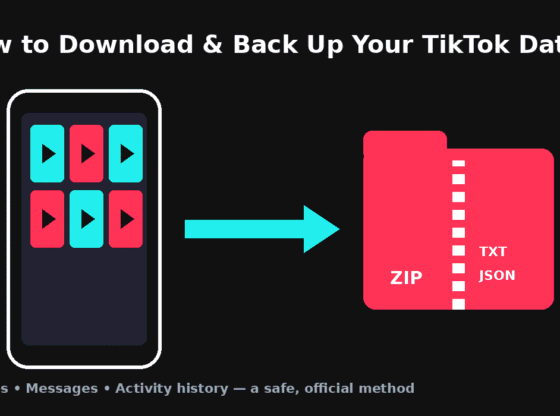

Your TikTok account can hold years of videos, comments, messages and settings. If you are switching phones, thinking about deleting your account, or simply want a personal copy of what you have posted, it makes sense to back that information up first. TikTok includes an official “Download your data” tool for exactly this purpose, and you can also save individual videos straight to your phone. This guide explains both methods, what each one actually gives you, and how to handle the file safely once you have it.
What You’ll Need
- The TikTok app (latest version from the Google Play Store or Apple App Store), or a web browser signed in at tiktok.com.
- Access to the account, including the ability to receive a verification code if TikTok asks you to confirm it’s you.
- Enough free storage space — data files for active accounts can be large.
- A stable Wi-Fi connection, especially when downloading the finished file.
What’s Included in a TikTok Data Download
TikTok’s data export is designed to give you a copy of the information associated with your account. Depending on your activity and region, it typically includes your profile information, activity such as your watch history, likes, comments and search history, direct messages, and settings. You can usually choose which categories to include, or select all of them.
It’s important to know that the export is mainly a record of your account data. It may list links to your videos rather than giving you a neatly organized folder of high-quality video files, so if keeping your actual clips matters to you, also follow the section on saving videos individually below.
How to Request Your Data in the TikTok App
- Open TikTok and tap Profile in the bottom-right corner.
- Tap the menu icon (three lines) in the top-right corner, then tap Settings and privacy.
- Tap Account, then Download your data.
- Select which data you want to include, or choose all available data.
- Choose a file format. TXT is easier to read on your own; JSON is a structured format that is better if you plan to import or process the data with other tools.
- Tap Request data.
TikTok does not create the file instantly. Preparing it can take some time, ranging from a few hours to several days for large accounts. You can check progress on the same screen under the Download data tab.
How to Download the File Once It’s Ready
- Go back to Settings and privacy > Account > Download your data.
- Open the Download data tab. When the status shows the file is ready, tap Download.
- Verify your identity if prompted.
- Save the ZIP file to your phone or computer, then extract it with your device’s built-in file manager.
The finished file is only available for a limited period, so download it soon after you receive the notification. If it expires, you can simply submit a new request.
Requesting Your Data on a Computer
If you prefer working on a laptop or desktop, sign in at tiktok.com, open your account Settings, and look for the privacy or account section that contains Download your data. The options are similar to the app. Downloading a large ZIP to a computer is often easier, since you get more storage and can open TXT or JSON files with any text editor.
How to Save Individual TikTok Videos to Your Phone
To keep personal copies of specific videos you have posted:
- Open your profile and tap the video you want to keep.
- Tap the Share button (the arrow icon) or the three-dot menu.
- Tap Save video. The video will be saved to your phone’s gallery or Photos app.
Videos saved this way may include a TikTok watermark. Drafts are a separate case: they are generally stored on the device where you created them and are not automatically synced to your account, so post or save any drafts you want to keep before you switch phones or uninstall the app.
Common Problems and Fixes
- The request is stuck on “Pending”: This is normal for a while. Large accounts take longer to process. Avoid submitting multiple duplicate requests; wait a few days before trying again.
- The download option has disappeared: The file has most likely expired. Submit a new request and download it promptly when it’s ready.
- The download fails or stops halfway: Switch to a stable Wi-Fi connection, make sure you have enough free storage, and try again. Downloading on a computer can help with very large files.
- “Save video” is missing: Make sure you are viewing your own video. For other people’s videos, the creator may have turned off downloads, and you should respect that choice.
- The ZIP file won’t open: Confirm the download finished completely, then use your phone’s Files app or your computer’s built-in extraction tool. If it still fails, the file may be corrupted — request a new copy.
- You can’t sign in to request your data: Use the official “Forgot password” option in the app and recover the account through your registered phone number or email before trying again.
Keeping Your Data Safe
Your data file can include private messages, your search and viewing history, and contact details, so treat it like any other sensitive personal document.
- Only request data inside the official app or tiktok.com. Avoid third-party websites or apps that ask for your TikTok login to “export” or “download” your account — handing over your password puts the account at risk.
- Store the file somewhere secure. Keep it on a password-protected device or in a cloud storage account that uses two-step verification.
- Don’t share the file casually. Sending it to others shares your messages and activity history too.
- Back up before you delete. If you plan to delete your account, download your data and save your videos first, since deleted content may not be recoverable.
- Turn on two-step verification in TikTok’s security settings to protect the account itself.
Frequently Asked Questions
How long does it take to get my TikTok data?
It varies with the size of your account. Smaller accounts may be ready within hours, while very active accounts can take several days.
Does downloading my data delete anything from my account?
No. Requesting and downloading a copy of your data doesn’t change or remove anything on your TikTok account.
Should I choose TXT or JSON?
Choose TXT if you simply want to read through your information. Choose JSON if you want to analyze the data with software or a spreadsheet tool.
Will my drafts be included in the data download?
Don’t rely on it. Drafts are usually stored on the device you created them on, so post or save the ones you want to keep before changing phones.
Steps and menu labels may change as apps update. Last updated: November 2026.