

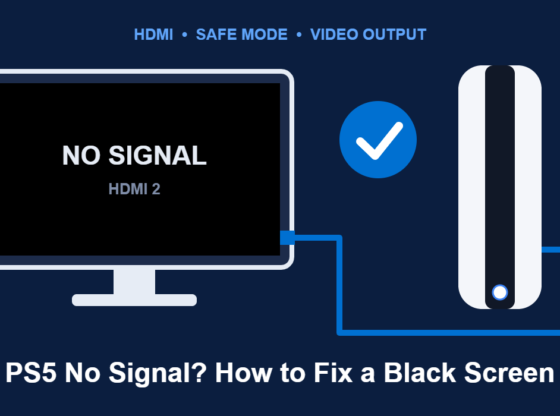

You turn on your PS5, the light on the console glows, but your TV says “No Signal” or simply stays black. In most cases the cause is something simple: a loose or unsuitable HDMI cable, the wrong TV input, or a video setting the TV can’t handle. This guide walks through the fixes in order, from the quickest checks to using PS5 Safe Mode to reset the video output, plus what to do if nothing works.
What You’ll Need
- Your PS5 console and its power cable.
- The HDMI cable that came with the PS5 (or another certified high-speed HDMI cable).
- A DualSense controller and a USB cable to connect it to the console (needed for Safe Mode).
- Your TV remote, so you can switch inputs and check the TV’s settings.
Step 1: Confirm the PS5 Is Actually On
Look at the light bar on the console. A solid white light means the PS5 is on. A pulsing blue light means it’s starting up. A solid orange light means it’s in Rest Mode, and no light means it’s fully off. If the console is in Rest Mode, press the PS button on a paired controller or the power button on the console to wake it. If you see a blinking light or the console won’t power on at all, the issue is power-related rather than a display problem.
Step 2: Check the TV Input and HDMI Port
- Use your TV remote’s Input or Source button and make sure the TV is set to the exact HDMI port the PS5 is plugged into (for example, HDMI 2 rather than HDMI 1).
- Unplug the HDMI cable from both the PS5 and the TV, then plug it back in firmly at both ends.
- Try a different HDMI port on the TV. If your TV has a port labeled for 4K/120Hz, HDMI 2.1, or “eARC,” try both that port and a standard one.
- If you use a soundbar, AV receiver, or capture card between the PS5 and the TV, connect the PS5 directly to the TV to rule out the extra device.
Step 3: Swap the HDMI Cable
HDMI cables can fail without visible damage, and older or very long cables may not support the bandwidth a PS5 uses at high resolutions. Use the cable included with the console if you still have it. If you’re buying a replacement, choose a certified Ultra High Speed HDMI cable if you want 4K at 120Hz. Also inspect the PS5’s HDMI port with a flashlight — if the port looks bent, loose, or damaged, don’t force a cable in; that typically needs professional repair.
Step 4: Power-Cycle the PS5 and the TV
- Hold the PS5 power button for a few seconds until it beeps and turns off completely (the light goes out).
- Unplug the PS5’s power cable and your TV’s power cable from the wall.
- Wait at least a minute, then plug both back in and turn on the TV first, followed by the PS5.
This clears temporary glitches in the HDMI “handshake” between the devices.
Step 5: Reset the Video Output in Safe Mode
If the PS5 is outputting a resolution or format your TV doesn’t support, Safe Mode lets you start the console with basic video settings.
- Turn the PS5 off completely (not Rest Mode).
- Press and hold the power button. Release it after you hear the second beep, roughly seven seconds later.
- Connect your DualSense controller with a USB cable and press the PS button.
- In the Safe Mode menu, choose Change Video Output.
- Select Change Resolution and the console will restart at a lower resolution. If that works, you can raise the resolution again later.
Step 6: Adjust the PS5 Video Settings
Once you have a picture, go to Settings > Screen and Video > Video Output and review these options:
- Resolution: Set it to Automatic, or pick a resolution your TV supports.
- 4K Video Transfer Rate: If the picture flickers or drops out, try changing it from Automatic to a lower option (such as -1 or -2).
- VRR and 120Hz output: If your TV doesn’t fully support these, turning them off can stop blackouts during games.
It can also help to check Settings > System > HDMI, where you’ll find options such as HDMI Device Link and Enable HDCP. Keep HDCP on for normal use, since streaming apps need it.
Step 7: Check Your TV’s Settings
Many TVs limit HDMI ports to basic signals until you enable an enhanced mode. Depending on the brand, this may be called something like “HDMI Ultra HD Deep Color,” “Input Signal Plus,” or “Enhanced format.” Check your TV’s manual for the exact name. If enabling it causes a black screen, try turning it off instead — some older TVs don’t handle the full signal well.
Common Problems and Fixes
- Picture appears for a second, then goes black: Usually a cable bandwidth or HDCP handshake issue. Try another cable, lower the 4K Video Transfer Rate, or connect directly to the TV.
- No signal only during certain games: Turn off 120Hz output or VRR and test again; some TVs struggle with mode switches.
- Black screen when opening streaming apps: Make sure HDCP is enabled and the PS5 is connected directly to the TV rather than through a capture card.
- Safe Mode doesn’t show up either: Try a different TV or monitor. If the PS5 shows nothing on any display with a known-good cable, the console’s HDMI port or internal hardware may be faulty.
Protect Your Data Before Bigger Fixes
Safe Mode also lists options such as rebuilding the database and resetting the console. A full Reset PS5 erases all data and settings, so only use it as a last resort. Before any reset, make sure your saves are protected: PlayStation Plus members can use cloud storage for game saves, and anyone can back up data to a USB drive from Settings > System > System Software > Back Up and Restore when the console is working. If you suspect a hardware fault, contact PlayStation Support before opening the console or using an unofficial repair shop, since that can affect your warranty.
Frequently Asked Questions
Why does my PS5 say “No Signal” when the light is white?
The console is on but the TV isn’t receiving a usable image. This is most often caused by the wrong input, a faulty cable, or an unsupported resolution — all of which are covered above.
Will Safe Mode delete my games?
No. Restarting and changing the video output in Safe Mode don’t delete anything. Only the reset options erase data, and the console warns you before doing so.
Do I need a special HDMI cable for the PS5?
The included cable is fine. For 4K at 120Hz, use a certified Ultra High Speed HDMI cable and a TV port that supports it.
Steps and menu labels may change as apps update. Last updated: November 2026.