

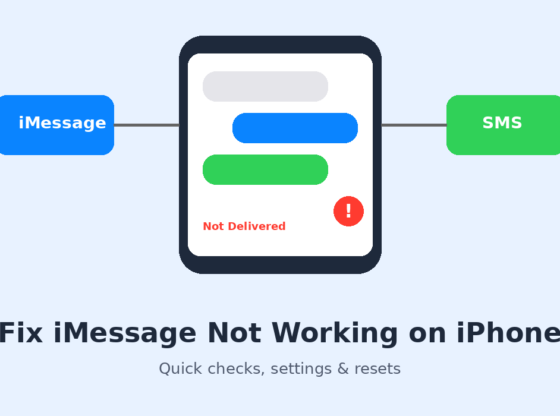

You tap send, and instead of the usual blue bubble you get a green one, a “Not Delivered” warning, or a message that just sits there with a spinning bar. When iMessage stops working, it can make everyday conversations frustrating. This guide walks through the most reliable fixes, from quick checks to account-level resets, so you can get your messages flowing again on your iPhone.
What You’ll Need
- An iPhone running a current version of iOS
- A working Wi-Fi or cellular data connection
- Your Apple Account (Apple ID) email and password
- A few minutes, and ideally a recent backup before changing deeper settings
Step 1: Check the Basics First
Many iMessage problems come from simple connectivity issues. Before changing any settings, run through these quick checks:
- Open Control Center and confirm Airplane Mode is off.
- Check that you have Wi-Fi or cellular data. Try opening a web page in Safari to confirm.
- Restart your iPhone. A reboot clears many temporary glitches.
- Check Apple’s public System Status page to see whether iMessage is experiencing an outage.
Step 2: Make Sure iMessage Is Turned On
Go to Settings > Messages and look at the iMessage toggle. If it is on, turn it off, wait about 30 seconds, then turn it back on. You may see an “Waiting for activation” message for a short time. Activation can take a few minutes, and it may use a text message that your carrier could charge for, depending on your plan.
Also check Send & Receive in the same menu. Confirm that your phone number and Apple Account email are listed and ticked, and that the correct number is selected under “Start New Conversations From.”
Step 3: Enable Send as SMS
If the other person isn’t using an Apple device, or iMessage can’t reach Apple’s servers, your iPhone can fall back to regular text messages. In Settings > Messages, make sure Send as SMS is on. Messages sent this way appear in green bubbles and follow your carrier’s SMS rules.
Step 4: Sign Out and Back In to Your Apple Account for Messages
If activation keeps failing, refreshing your sign-in can help:
- Open Settings > Messages > Send & Receive.
- Tap your Apple Account at the top and choose Sign Out.
- Restart the iPhone.
- Return to the same screen, sign in again, and confirm your number and email are selected.
Step 5: Reset Network Settings
If messages still fail, a network reset may resolve a deeper connection problem. Go to Settings > General > Transfer or Reset iPhone > Reset > Reset Network Settings. This removes saved Wi-Fi networks and passwords, VPN settings, and cellular settings, so make sure you know your Wi-Fi passwords first. Your photos, apps, and messages are not deleted by this option.
Step 6: Update iOS and Carrier Settings
Open Settings > General > Software Update and install any available update. Carrier updates, when available, usually appear as a prompt after you connect to Wi-Fi or cellular; you can also check under Settings > General > About. Updates often include fixes for messaging bugs.
Common Problems and Fixes
- Messages to one contact are green, others are blue: That contact may not use iMessage, may have turned it off, or may have switched to a non-Apple phone. Check that the phone number or email saved for them is correct.
- “Not Delivered” with a red exclamation mark: Tap it and choose Try Again, or Send as Text Message. If it keeps failing, check your signal and the recipient’s number.
- Stuck on “Waiting for activation”: Check your date and time are set automatically (Settings > General > Date & Time), confirm your data connection, then toggle iMessage off and on.
- Group messages aren’t working: Group chats can break when one member changes devices. Try starting a new group conversation.
- Not receiving messages after switching phones: If you moved from an iPhone to another brand, you may need to deregister your number from iMessage using Apple’s official deregistration tool.
Data Safety and Precautions
Your messages can contain sensitive information, so take care before resetting or signing out of anything. Back up your iPhone to iCloud or a computer first. Only enter your Apple Account password on Apple’s own sign-in screens in Settings, and be wary of texts claiming your iMessage is “suspended” or asking you to verify your account through a link. Apple does not ask for your password by text. Also remember that Send as SMS messages are not end-to-end encrypted the way iMessages are.
Frequently Asked Questions
Why are my iMessages turning green?
Green bubbles mean the message was sent as SMS or MMS rather than iMessage. This happens when the recipient doesn’t use iMessage or when your iPhone can’t reach Apple’s servers.
Will turning iMessage off delete my messages?
No. Toggling iMessage off and on does not delete your existing conversations, though keeping a backup is still wise.
Does iMessage use mobile data?
Yes, when you are not on Wi-Fi, iMessages use cellular data, though text-only messages use very little.
Do I need to pay for iMessage?
iMessage itself is free, but standard carrier charges may apply for SMS fallbacks or data use, depending on your plan.
Steps and menu labels may change as apps update. Last updated: October 2026.