

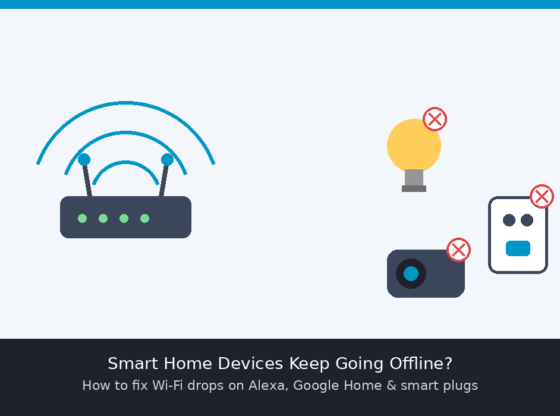

Few things are more frustrating than asking your smart speaker to turn on the lights and getting silence — or opening the Alexa or Google Home app to find half your smart plugs, bulbs, and cameras marked “offline.” Smart home devices depend on a constant, stable Wi-Fi connection, and even small network hiccups can knock them out while your phone and laptop stay connected without a problem. This guide walks through why smart home devices randomly disconnect and how to fix it, step by step, without needing to replace your router or call an electrician.
What You’ll Need
- Access to your router or mesh Wi-Fi system’s admin app or web page
- The companion app for your smart home platform (Amazon Alexa, Google Home, Samsung SmartThings, or similar)
- Your Wi-Fi network name (SSID) and password
- A few minutes of downtime, since some fixes require restarting devices
Why Smart Home Devices Keep Dropping Offline
Most smart home gadgets — plugs, bulbs, sensors, cameras, and hubs — use low-power Wi-Fi radios that are more sensitive to interference and signal strength than a phone or computer. Common causes include being too far from the router, a crowded 2.4GHz band, a router that’s rebooted or changed channels, an ISP-issued router that deprioritizes IoT traffic, or the device firmware itself getting stuck after a brief outage. Because these devices rarely have a screen, they often can’t tell you what went wrong — they just quietly stop responding.
Step 1: Restart the Basics First
Before changing any settings, rule out a simple glitch:
- Unplug the affected smart device for 30 seconds, then plug it back in.
- Restart your router and modem by powering them off, waiting 30 seconds, and powering them back on.
- If you use a smart home hub (like a SmartThings or Google Nest hub), restart that too.
This clears temporary connection errors and is often enough to bring devices back online.
Step 2: Confirm You’re Using the 2.4GHz Band
Most smart plugs, bulbs, and sensors only support the 2.4GHz Wi-Fi band, not 5GHz. If your router broadcasts a single combined network name for both bands, some devices can accidentally try to connect to 5GHz and fail. In your router’s app or admin page, check whether you can split the bands into two separate network names (for example, “HomeWiFi” and “HomeWiFi_5G”), then set up new or struggling smart devices on the 2.4GHz network specifically.
Step 3: Reduce Distance and Interference
Smart home radios are generally weaker than a laptop’s Wi-Fi antenna. If a device is in a basement, garage, or far corner of the house, it may be sitting right at the edge of your signal range. To improve reliability:
- Move the router to a more central, elevated location if possible.
- Add a Wi-Fi extender or mesh satellite near clusters of smart devices that are far from the router.
- Keep smart devices away from large metal objects, microwaves, and cordless phone bases, which can interfere with the 2.4GHz band.
Step 4: Check Your Router’s Device Limit and Channel Settings
Smart homes can easily have 20–50 connected devices. Some budget or older routers struggle to keep that many devices stable at once. In your router settings, look for a connected-devices list to see if any smart devices are dropping in and out repeatedly. If your router lets you manually set the 2.4GHz channel, switching to a less congested channel (1, 6, or 11 are commonly recommended) can reduce interference from neighboring networks.
Step 5: Update Firmware and App Versions
Outdated firmware on the smart device itself, or an outdated companion app, can cause repeated disconnects that look like a Wi-Fi problem but aren’t. Open the Alexa, Google Home, or manufacturer app, go to the device’s settings, and check for a firmware or software update option. Also make sure the app itself is updated to the latest version from the App Store or Google Play.
Step 6: Re-Pair Devices That Won’t Reconnect
If a specific device remains offline after the steps above, a fresh setup often resolves it:
- Remove the device from the Alexa, Google Home, or SmartThings app.
- Factory reset the device following the manufacturer’s instructions (usually a long press on a small reset button).
- Add it back as a new device, making sure you select the 2.4GHz network during setup.
Data Safety and Privacy Considerations
Smart home devices are always-connected and often tied to accounts that control cameras, locks, or voice recordings inside your home, so it’s worth taking a few precautions while troubleshooting. Use a strong, unique password for your router admin panel and your smart home platform account, and enable two-factor authentication where it’s offered. Avoid downloading companion apps from outside official app stores, and if you factory reset and re-pair a device, confirm old automations or shared access (like a previous housemate’s account) are removed during setup. If a device is no longer supported by the manufacturer with security updates, consider whether it’s still safe to keep on your home network.
Common Problems and Fixes
Device shows “offline” but the light or plug still works with a manual switch: this almost always means a Wi-Fi handshake issue, not a hardware failure — work through Steps 1–3 above.
Only devices in one room keep dropping: this points to a signal strength problem in that area; try Step 3 (extender or mesh satellite) rather than resetting every device in the house.
Devices reconnect after a router restart but drop again within a day: this often indicates channel congestion or a router that needs a firmware update — check Step 4 and update your router’s firmware from its admin app.
Voice assistant says “device is unresponsive” for everything at once: check whether your internet connection itself is down, since most smart home platforms rely on a cloud connection even for local commands.
Frequently Asked Questions
Why do smart plugs disconnect more than my phone?
Smart plugs and bulbs use smaller, lower-power antennas than phones or laptops, so they’re more affected by distance and interference even on the same network.
Do I need a mesh Wi-Fi system for a smart home to work well?
Not necessarily, but if you have more than a handful of devices spread across a larger home, a mesh system generally provides more consistent coverage than a single router.
Will changing my Wi-Fi password affect my smart devices?
Yes — you’ll need to reconnect each smart device to the network individually after a password change, since they don’t always update automatically like phones do.
Is it safe to put all my smart devices on a guest network?
Many routers now offer a separate IoT or guest network specifically for smart devices, which can improve both security and stability by isolating them from your main devices.
Steps and menu labels may change as apps update. Last updated: September 2026.