

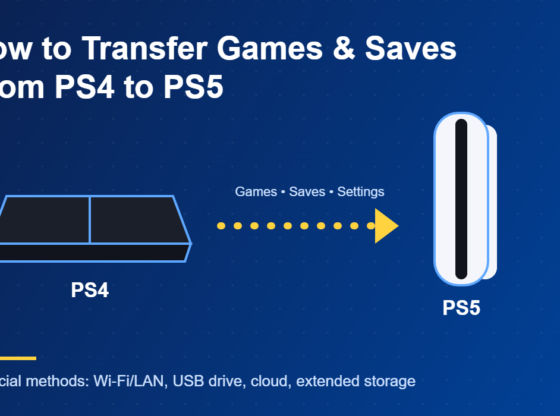

Bought a PS5 but still have years of games, trophies and save files sitting on your PS4? The good news is you don’t have to start over. Sony gives you several official ways to move your games and progress across, and the right one depends on how much data you have, whether you use an external drive, and whether you pay for PlayStation Plus. Here’s how each method works and what to do when a transfer goes wrong.
What You’ll Need
- Your PS4 and PS5, both plugged in, with the PS5 connected to a TV.
- The same PlayStation Network account signed in on both consoles.
- The latest system software installed on the PS4 and PS5.
- Both consoles on the same home network (Wi-Fi or wired). A wired connection is faster and more reliable.
- Optional: a USB flash drive (for save files), your PS4’s USB extended storage drive, or a PlayStation Plus membership (for cloud saves).
Before You Start: Prepare Your PS4
A few minutes of preparation prevents most transfer failures:
- Update the PS4. Install the latest system software update before you begin. Sony lists this as a requirement for data transfer.
- Sync your trophies. Open the Trophies screen on the PS4, press the Options button and choose to sync with PlayStation Network. Trophies are tied to your account, but syncing first makes sure nothing recent is left behind.
- Back up important saves. Copy any save you can’t afford to lose to a USB drive or the cloud first (see Methods 3 and 4).
- Free up space on the PS5. PS5 internal storage fills quickly. Check how much space you have under Settings > Storage and decide which games you actually want to bring across.
Method 1: Transfer Over Wi-Fi or LAN (Best for Moving Everything)
This is the official all-in-one option. It copies games and saved data directly from the PS4 to the PS5 over your home network.
- Turn on both consoles and sign in to the same account on each.
- On the PS5, go to Settings > System > System Software > Data Transfer, then select Continue.
- Select your PS4 when the PS5 finds it. When prompted, press and hold the PS4’s power button for about one second until it beeps to put it into transfer mode.
- Choose the games and saved data you want to move, then start the transfer.
- Leave both consoles alone until it finishes. The PS5 restarts during the process, and games may keep copying in the background afterwards. You can watch progress under Downloads/Uploads in the control centre.
If you are setting up a brand-new PS5, you’ll also be offered this transfer during initial setup. Doing it at that stage moves more: Sony says user accounts and console settings only come across during initial setup, while a transfer done later moves games and the signed-in user’s saved data.
Method 2: Plug In Your PS4 Extended Storage Drive
If your PS4 games are installed on a USB extended storage drive, you can simply move the drive over. Connect it to one of the PS5’s USB ports and the PS4 games on it appear in your library, ready to play straight from the drive. There’s no copying and no waiting.
Keep in mind that this works for PS4 games. PS5 games can be stored on a USB drive but must be played from the PS5’s internal SSD or a compatible M.2 drive.
Method 3: Use PlayStation Plus Cloud Storage (Saves Only)
PlayStation Plus members can move PS4 saves through the cloud, which is handy if the two consoles aren’t in the same place.
- On the PS4, open Settings > Application Saved Data Management > Saved Data in System Storage and choose Upload to Online Storage. Select the saves you want and upload them.
- On the PS5, go to Settings > Saved Data and Game/App Settings > Saved Data (PS4), choose Cloud Storage and download the saves to the console.
This moves progress only. You’ll still need to install the games themselves, either from your digital library or from the disc.
Method 4: Copy Saves With a USB Flash Drive
No PlayStation Plus? A USB stick works too.
- Plug a USB drive into the PS4 and go to Settings > Application Saved Data Management > Saved Data in System Storage > Copy to USB Storage Device. Select the saves and copy them.
- Move the drive to the PS5 and go to Settings > Saved Data and Game/App Settings > Saved Data (PS4) > USB Drive, then copy the saves to console storage.
If the PS5 already has a save for that game, you’ll be asked whether to replace it. Be careful here, because the replaced save can’t be recovered.
PS4 Saves and PS5 Versions of Games
Some games have separate PS4 and PS5 versions. Whether your PS4 progress carries over to the PS5 version is decided by each game’s developer, not by the console. Many titles offer an in-game option to import or upload PS4 progress, while others don’t support it at all. Check the game’s official support page before you delete the PS4 version.
Common Problems and Fixes
- The PS5 can’t find the PS4: Confirm both are on the same network and signed in to the same account. Restart your router and both consoles, then try again. A LAN cable to each console usually solves detection problems.
- The transfer is very slow: Wi-Fi transfers of large libraries can take hours. Connect both consoles to the router with Ethernet cables, and transfer only the games you actually play.
- Transfer stopped or failed: Avoid turning off either console, changing network settings or running a connection test during the transfer, as Sony warns this can damage or lose data. If it fails, restart both consoles and start the transfer again.
- Some saves didn’t come across: A transfer done after initial setup only moves saved data for the user who is signed in. Sign in as each other user and transfer again, or use the USB or cloud methods.
- Not enough storage on the PS5: Deselect large games you rarely play, or play PS4 titles directly from a USB extended storage drive.
Keeping Your Data Safe
Your PSN account holds your purchases, trophies and payment details, so protect it during the move. Turn on two-step verification for your account, and only sign in to your own consoles. Before you sell or give away your old PS4, deactivate it as your primary console, then use Settings > Initialization > Initialize PS4 to wipe it. Check that your saves open correctly on the PS5 before you erase anything.
FAQ
How long does a PS4 to PS5 transfer take?
It depends on how much data you have and your network speed. A few games over Ethernet can take minutes, while a full library over Wi-Fi can take several hours.
Will I lose my trophies?
No. Trophies are stored on your PlayStation Network account. Syncing them on the PS4 before transferring makes sure the latest ones are saved.
Can I copy PS5 saves to a USB drive the same way?
No. Sony doesn’t allow PS5 saved data to be copied to a USB drive. PS5 saves can be backed up to cloud storage with PlayStation Plus.
Steps and menu labels may change as apps update. Last updated: November 2026.