

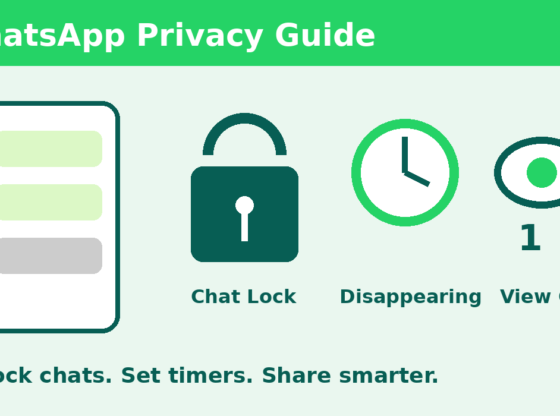

Your WhatsApp chats hold some of the most personal information on your phone: family photos, account codes, addresses and private conversations. Many people never look at the privacy tools built into the app. This guide walks you through four of them — Chat Lock, Disappearing Messages, View Once and Privacy Checkup — so you can decide what stays visible, for how long, and to whom.
What You’ll Need
- The latest version of WhatsApp from Google Play or the App Store
- A phone with a screen lock (PIN, pattern, fingerprint or face unlock) already set up
- A few minutes and access to your WhatsApp Settings
Step 1: Run Privacy Checkup
WhatsApp includes a guided tool that walks you through your main privacy choices in one place. Open WhatsApp, go to Settings (on Android tap the three-dot menu first; on iPhone use the Settings tab) and choose Privacy. If your version offers Privacy Checkup, tap it and follow the prompts. It covers who can contact you, who sees your personal details, and how to secure your account.
If you do not see it, update the app and check again. You can still review each option manually from the same Privacy screen.
Step 2: Review Who Can See Your Information
On the Privacy screen, look at the options for last seen, profile photo, About and status. Each lets you choose between everyone, your contacts, or a narrower group. Pick the level you are comfortable with, then confirm the choices are saved by reopening the screen.
Step 3: Lock Sensitive Chats With Chat Lock
Chat Lock moves a conversation into a separate, protected folder that opens only with your phone’s unlock method, such as a fingerprint, face unlock or passcode.
- Open the chat you want to protect.
- Tap the contact or group name at the top to open the chat info screen.
- Find and tap Chat lock, then turn it on and confirm with your fingerprint, face or passcode.
Locked chats no longer appear in your normal chat list. To reach them, look for the Locked chats folder at the top of your chat list and authenticate. Notifications for locked chats hide the sender and message preview.
Step 4: Use Disappearing Messages
Disappearing messages automatically delete new messages in a chat after a set time. WhatsApp offers several durations, including 24 hours, 7 days and 90 days.
- Open the chat and tap its name at the top.
- Tap Disappearing messages.
- Choose a duration, or select Off to stop.
You can also set a default timer for all new chats under Settings > Privacy > Default message timer. Keep in mind that the setting only affects messages sent after you turn it on, and the other person can still copy, screenshot or forward what you send before it disappears.
Step 5: Send Photos and Videos With View Once
View Once lets a recipient open a photo or video a single time before it is removed from the chat.
- Choose or capture a photo or video as usual.
- Before sending, tap the small 1 (View Once) icon next to the caption field so it is highlighted.
- Tap send.
The recipient sees a “Photo” or “Video” label instead of a preview, and it cannot be forwarded through WhatsApp. It is not a guarantee of secrecy: the person could still photograph the screen with another device.
Data Safety and Precautions
Privacy tools protect against casual snooping, not every risk. Keep these precautions in mind:
- Turn on two-step verification under Settings > Account > Two-step verification, and never share your six-digit registration code with anyone, even someone claiming to be WhatsApp.
- Back up before changing settings if you care about old chats. Disappearing messages cannot be undone once they expire.
- Check Linked devices in Settings and log out any you do not recognize.
- Keep your phone’s own screen lock strong, since Chat Lock relies on it.
- Avoid sharing sensitive details such as payment information over chat whenever possible.
Common Problems and Fixes
I can’t find the Chat lock option. Update WhatsApp to the newest version and make sure your phone has a screen lock configured. Some older app versions do not include the feature.
Locked chats don’t show in my list. That is normal. Scroll to the top of the chat list and open the Locked chats folder.
Disappearing messages are still visible. The timer applies only to messages sent after it was turned on, and deletion happens when the app syncs, so a message may linger briefly.
The View Once icon is missing. It appears for photos and videos from the media preview screen. Update the app if it still does not show.
Biometric unlock fails. Re-register your fingerprint or face in your phone’s system settings, then try again.
FAQ
Does Chat Lock delete my messages? No. It only hides the conversation behind your phone’s authentication. Your messages remain intact.
Can the other person see that I turned on disappearing messages? Yes. WhatsApp shows a notice in the chat when the setting changes.
Will disappearing messages be removed from backups? Do not assume so. Treat backups as separate copies and review your backup settings if this matters to you.
Is View Once safe for sensitive documents? It reduces casual sharing but cannot stop screenshots or photos of the screen, so avoid sending highly sensitive documents this way.
Steps and menu labels may change as apps update. Last updated: September 2026.